Staff Member Approval
If a school or district does not have a dedicated (or available) Realize account administrator, and the teacher is unsuccessful getting approved through auto-verification and peer teacher, a teacher can request verification assistance from a known school or district administrator. Below are the steps a teacher follows:
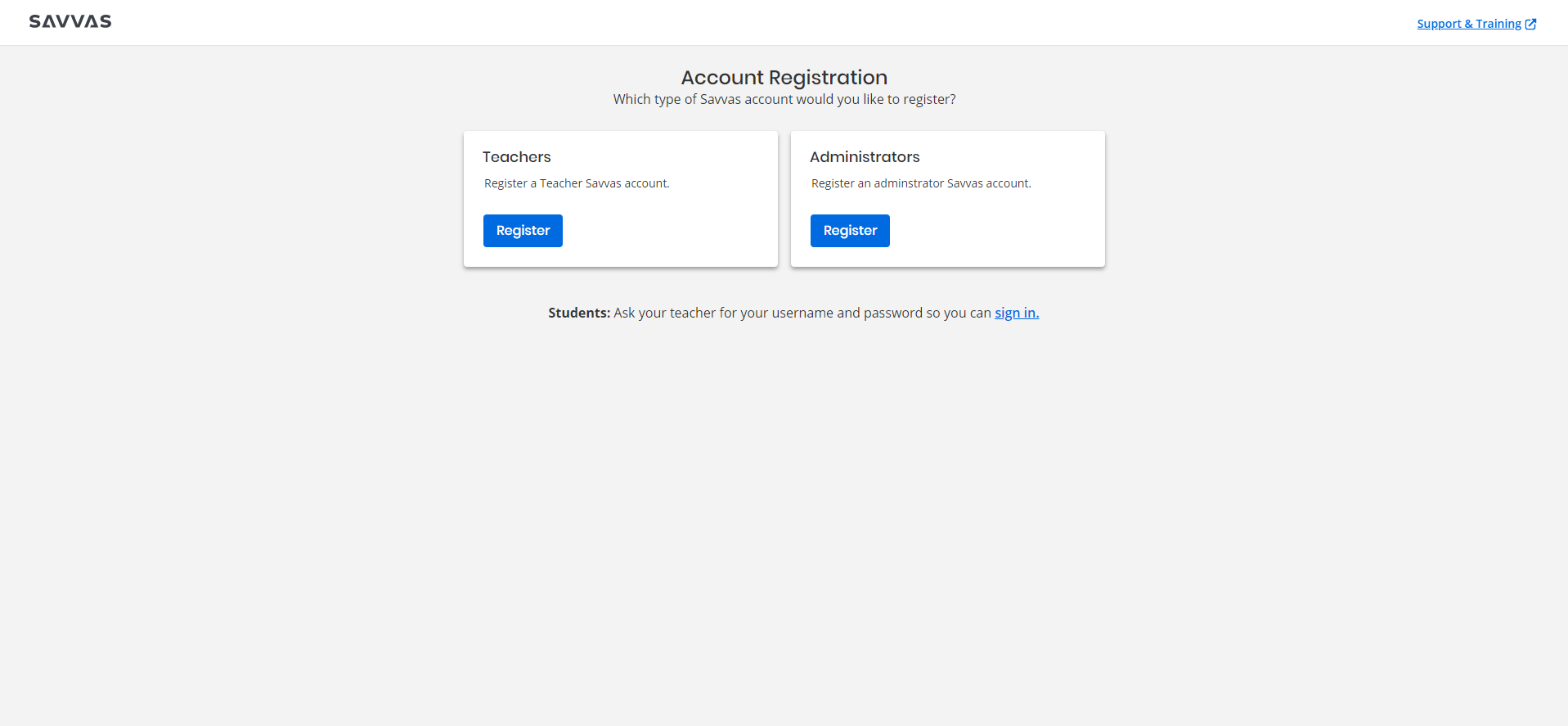
- Go to Savvas Realize and select Register today. The landing page appears below.
- Select Register in the Teacher box. The Teacher Account Request form appears.
-
Find the school by selecting the search button. Enter a minimum of the required School Zip Code and School Name, and select Search.
Helpful tip: to prevent the school from not being found, enter the beginning of the school name, select Search, and then select the school from the list returned.
- Select the radio button for the correct school from the Search Results and select Next.
- Verify the school selected is correct (Select Back button to select a different school).
- Enter the first name, last name, and school or district email address. Select Next.
Helpful tip: using the school's district provided email address results in faster verification.
- Verify the information entered is correct, including school, name, and email address. If correct, check the box to confirm as a teacher and select Next. To change anything, use the Back button.
-
An email containing the verification code is sent to the email address provided. Enter the verification code and select Verify.
To change anything, use the "review your registration information" link.
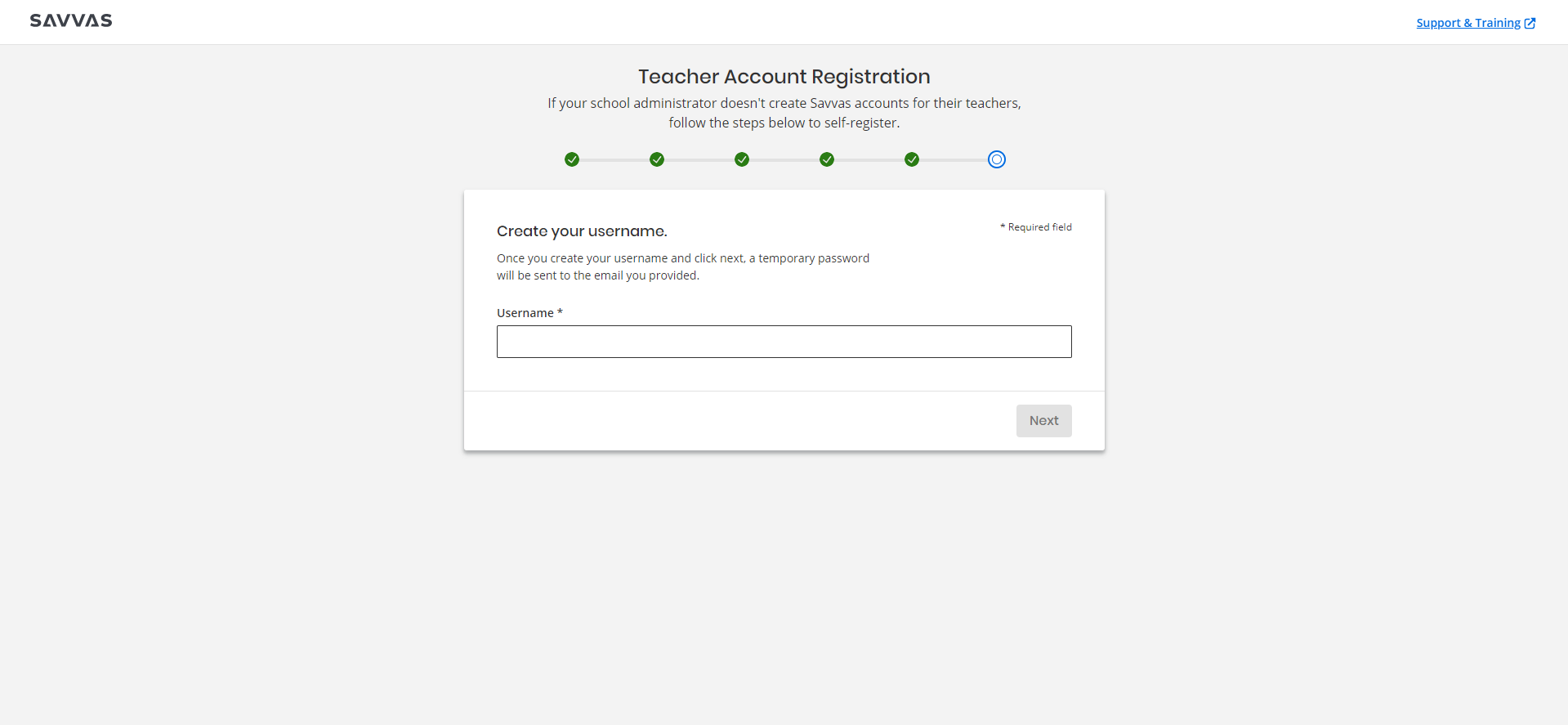
If auto-verified, and an account doesn't exist, the application prompts to enter a username on the next screen. Usernames must be unique.
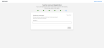
If you already have an account, the application prompts to use the existing account, or create a new account.
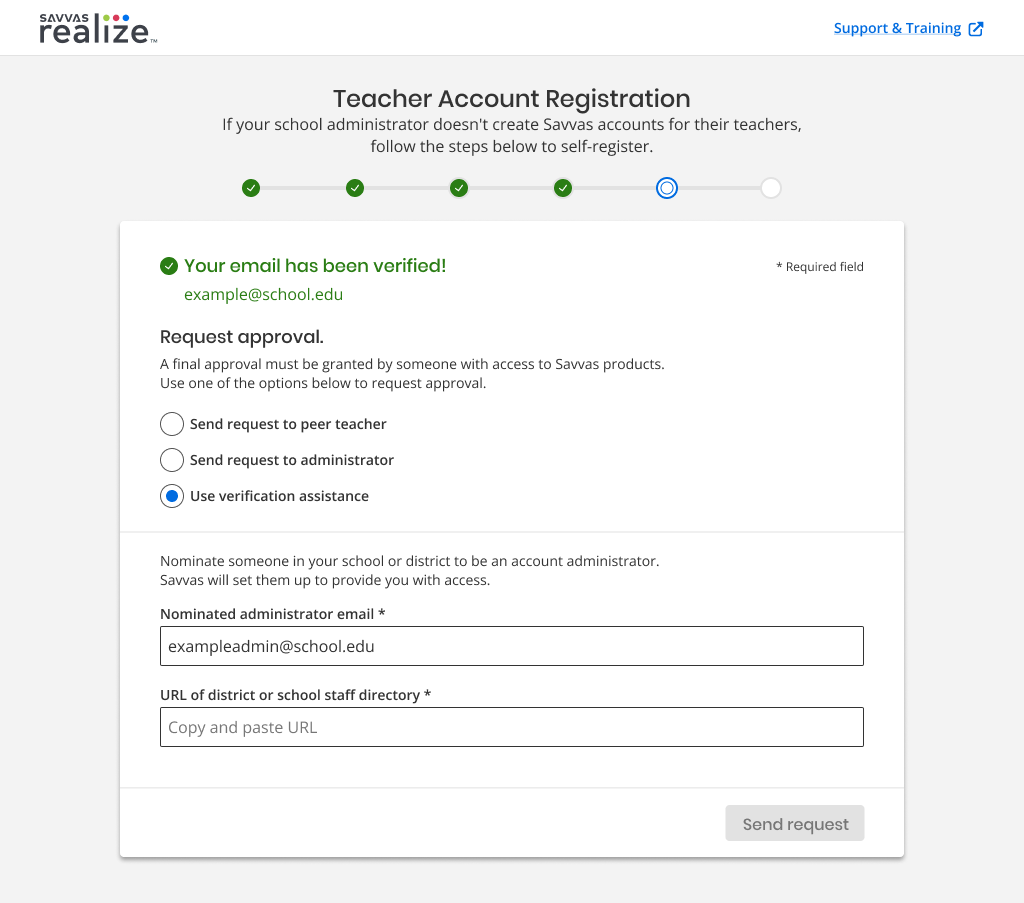
- If the school or district does not have a dedicated account administrator, and already attempted peer teacher verification, but are looking for another way to be verified, select the option for verification assistance.
- Enter the email address and URL for the staff directory in the text boxes provided on the new screen.

- Select Send request. Support verifies the administrator from whom the requested verification assistance was sent. Once the administrator is verified by Savvas Support, they receive an email that allows them to Approve (or Deny) the verification for the user to continue the registration. For further assistance, go to Savvas Support.